TL;DR: Uploading video into a video brochure is simple once you follow the right steps and use the correct file settings.
This guide walks you through the exact process, troubleshooting tips, and best practices to ensure smooth playback every time.
The Big Question on Video Brochure Guide 2026
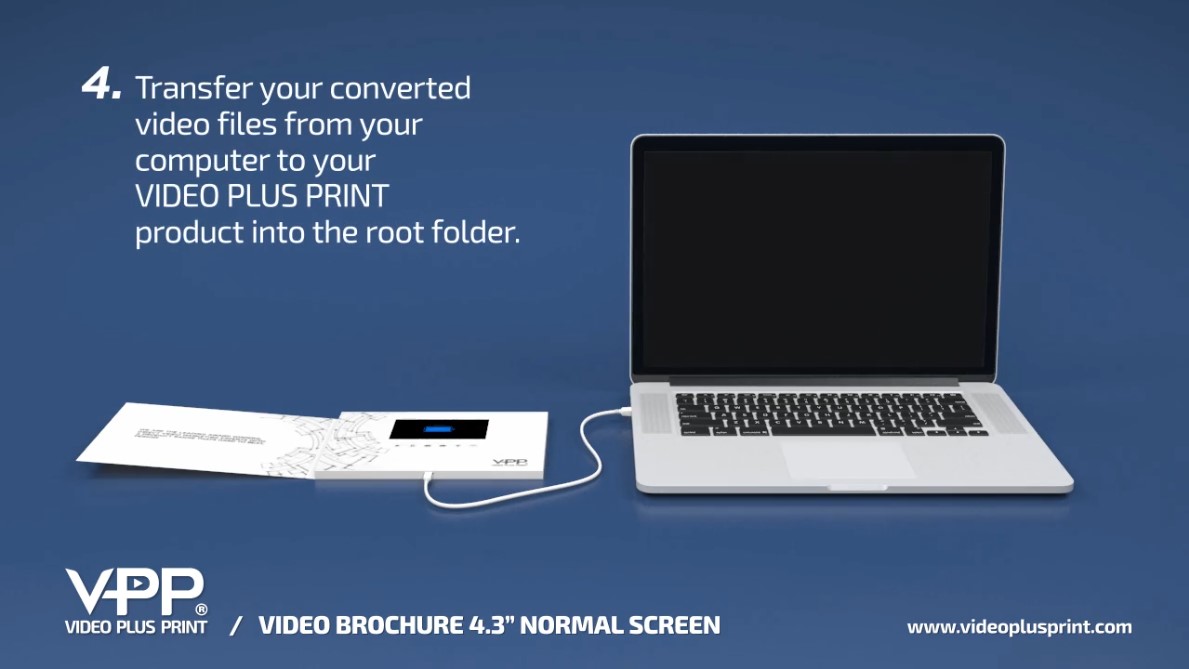
If you’re searching for how to upload video to video brochure, the process is straightforward. Connect the brochure to your computer using the USB cable, drag and drop the video file into the brochure memory, and safely eject the device before testing playback.
In How to Upload Video to Video Brochure Guide 2026, the biggest mistake people make is skipping formatting steps. Using the correct file format and resolution ensures the video plays smoothly and avoids frustrating errors later.
Understanding How Video Brochure Uploading Works
Every video brochure functions like a USB drive.
When connected to your computer, it appears as removable storage.
That storage holds your video files.
The most common methods include:
- video brochure USB transfer
- video brochure file transfer
- Drag-and-drop file copying
Once files are transferred correctly, the device plays them automatically when opened.
Step-by-Step Guide to Upload Video to Video Brochure
Here is the simplest step-by-step guide to upload video to video brochure devices.
Step 1: Connect the Device
Plug the USB cable into the video brochure.
Connect the other end to your computer.
The brochure will appear as a USB drive.
Step 2: Open the Video Folder
Locate the removable drive on your computer.
Open it to view existing files.
You may see:
- Existing video files
- System folders
- Splash screen files
Do not delete system files unless instructed.
Step 3: Prepare Your Video File
Use the best format for uploading video to video brochure before copying. Check out our FAQ Video Specs Page for more details.
Recommended settings:
- Format: MP4
- Codec: H.264
- Resolution: Match screen resolution
- Frame rate: 25 fps for most screen sizes
- Bitrate: 2500 kb/s bit rate for most screen sizes
Correct formatting prevents playback errors.
Step 4: Upload Video to Video Brochure
Drag your video file into the brochure folder.
Wait until transfer completes.
This process is often called:
- upload video to video brochure
- load video on video mailer
Do not disconnect early.
Step 5: Safely Eject the Device
Always eject the device properly.
Never unplug without ejecting.
Improper removal causes file corruption.
Step 6: Test Playback
Open the brochure.
Confirm:
- Video starts correctly
- Audio plays clearly
- Buttons function properly
Testing ensures reliability before distribution.
How to Upload Videos to Video Brochure - Watch Below
How to Upload Multiple Videos to Video Brochure
Some models support multiple videos.
This process is similar but requires file naming.
Steps include:
- Rename each file clearly
- Assign correct order
- Match button layout
Knowing how to upload multiple videos to video brochure models helps maintain organization and usability.
Troubleshooting Video Brochure Upload Problems
Even experienced users encounter issues.
Common troubleshooting video brochure upload situations include:
- Video not playing
- Files missing
- Incorrect order
- Device not recognized
Most problems are easy to fix.
How to Fix Video Not Playing After Upload Video Brochure
Playback issues usually relate to format settings.
Common causes include:
- Unsupported codec
- Incorrect resolution
- Excessive file size
- Incomplete transfer
Re-exporting files often solves the issue.
Best Format for Uploading Video to Video Brochure
The safest format remains:
MP4 with H.264 encoding.
Why?
Because it offers:
- High compatibility
- Reliable playback
- Efficient storage
Avoid uncommon formats.
Common Mistakes to Avoid
These errors cause most upload problems:
- Disconnecting USB too early
- Using unsupported file types
- Overfilling memory
- Renaming files incorrectly
Avoiding these mistakes saves time.
Upload Speed and File Size Expectations
Upload speed depends on:
- File size
- USB speed
- Computer performance
A 10-minute HD video typically uploads within minutes.
Large files take longer.
Hidden Files and System Errors
Some systems create hidden files automatically.
These files may:
- Reduce available memory
- Cause playback confusion
Deleting hidden files resolves many problems.
Key Takeaways
- Video brochures function like USB drives
- MP4 format ensures highest compatibility
- Always safely eject devices
- Test playback before sending
- Rename files correctly for order
- Avoid disconnecting during transfer
- Troubleshooting often involves format correction
How to Upload Video to Video Brochure Guide FAQ's
Q: How do I upload video to a Video Plus Print video brochure?
A: Connect the brochure using the USB cable, drag your video file into the device storage, safely eject it, and test playback. Video Plus Print provides step-by-step instructions to ensure smooth uploads. Please refer to this video Click Here
Q: Why does my brochure show NO FILE after uploading?
A: This usually happens when the video format is unsupported or the transfer was incomplete. Re-upload using MP4 format that matches the correct screen resolution.
Q: What is the best video format for Video brochures?
A: MP4 with H.264 compression provides the most reliable playback and is the recommended standard used by Video Plus Print devices.
Q: How to connect Video brochure to Mac for uploading?
A: This O/S does not support the use of a MAC computer for uploading.
Q: How to safely eject a video brochure?
A: Always click the eject icon on your computer before unplugging the USB cable to prevent file corruption or missing video errors.
Q: Can I upload multiple videos to Video brochures?
A: Yes, Video Plus Print brochures support multiple video files, depending on memory size and button configuration.
Q: Why won’t my uploaded video play on device?
A: The video file may be in the wrong format, too large, or transferred incorrectly. Re-exporting to MP4 usually fixes this issue.
Q: How to delete old videos from memory?
A: Connect the brochure to your computer and delete unwanted video files from the storage before adding new content.
Q: What resolution works best for screens?
A: Always match the video resolution to the exact screen resolution installed in your Video Plus Print brochure.
Q: How to rename files for correct order on brochure?
A: Use simple numbered names such as 001.mp4, 002.mp4, and 003.mp4 to ensure videos play in the correct sequence.
Q: Best free tools to convert video for Video Brochure?
A: Many free conversion tools can export videos into MP4 format using H.264 compression, which is ideal for Video Plus Print devices.
Q: How to fix not enough space on Video brochure?
A: Reduce the video bitrate, shorten video duration, or compress the file before uploading.
Q: Can I upload directly from iPhone to Brochure?
A: Transfer the video from your iPhone to a computer first, then upload it to the brochure using the USB connection.
Q: Why doesnt the USB drive appear for Video Brochure?
A: Check the USB cable, confirm the device has power, and try a different USB port if the drive does not appear.
Q: How to upload splash screen to brochure?
A: Replace the splash image file with a JPG that matches the screen resolution provided by Video Plus Print.
Q: What bitrate ensures smooth playback?
A: 4.3”, 5.0”, 7.0”, 9.0”, 10.1” screen sizes, we recommend 2500 kb/s bit rate as this typically ensures smooth playback without reducing battery life.
Q: How to format my brochure memory?
A: Formatting should only be done if instructed by Video Plus Print support to avoid removing important system files.
Q: Common upload errors with 7-inch models?
A: Most errors happen from incorrect resolution settings or oversized video files that exceed memory limits.
Q: How long to upload a 10-minute video?
A: Upload time varies depending on file size and USB speed but usually takes only a few minutes.
Q: Can I create folders on Video brochures?
A: Most Video Plus Print brochures use direct file placement rather than folders to keep playback simple.
Q: How to test video after uploading?
A: Disconnect the device safely, open the brochure, and verify that video playback begins immediately.
Q: How to upload 1080p video without lag?
A: Use optimized MP4 settings with proper bitrate and ensure the resolution matches the installed screen.
Q: How to fix hidden files on devices?
A: Remove hidden system files created by computers that may take up memory space unnecessarily.
Q: Best upload practices for touchscreen models?
A: Assign each video correctly to touchscreen buttons and test navigation before sending brochures to recipients.