TL;DR:
Uploading or changing the video on a Video Brochure is easier than most people expect.
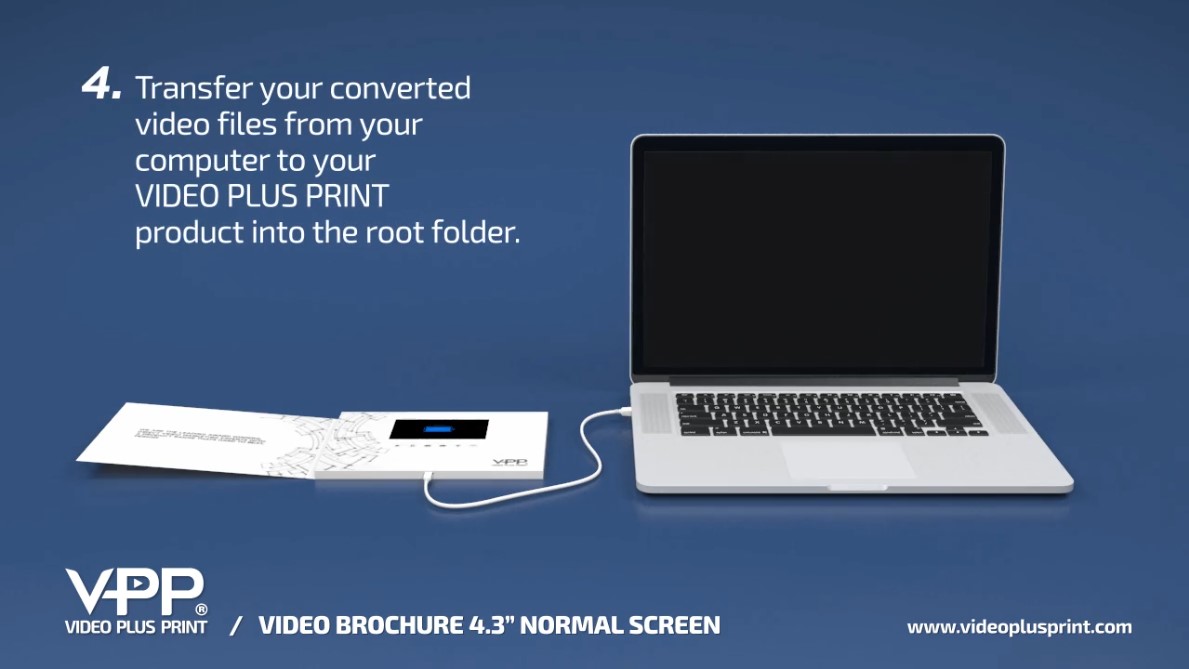
Video Plus Print products store video files directly in their internal memory. Simply connect the product to a compatible computer using the supplied USB to USB-C cable, access the internal storage, remove or replace the existing video files, safely eject the device, and test your new video.
No internet connection is required.
No monthly subscription.
No special app is needed for standard video updates.
This same basic process works with the majority of Video Plus Print products, including Video Brochures, Video Mailers, Video Boxes, Video Presentation Boxes, Video Folders, Video Books, Video Business Cards, and many Video Packaging products.
This guide explains exactly how to upload, replace, organize, and troubleshoot your video files.
How Does Uploading Video to a Video Brochure Work?
Think of your Video Brochure much like a USB storage device with a built-in LCD screen.
The internal memory stores your video files directly on the product.
When you connect the Video Brochure to a compatible computer using the supplied cable, the internal memory appears as a removable drive.
You can then access the existing videos and replace them with new content.
Once the new files are loaded and the device is safely disconnected, your Video Brochure is ready to play the updated content.
Which Video Plus Print Products Can Have Their Videos Updated?
The ability to update your content is not limited to Video Brochures.
The same general upload procedure works with the majority of Video Plus Print video-in-print products, including:
- Video Brochures
- Video Mailers
- Video Boxes
- Video Presentation Boxes
- Video Folders
- Video Books
- Video Business Cards
- Video Packaging
- Many other custom LCD video products
The exact USB connection, memory capacity, button configuration, and file setup can vary by product.
If your product contains multiple videos, custom chapter buttons, image slideshows, or another specialized configuration, contact Video Plus Print before changing the original file structure if you are unsure.
Step 1: Prepare Your Video File
efore connecting your Video Brochure, make sure your new video is prepared correctly.
For most Video Plus Print products, MP4 using H.264 encoding is the preferred video format.
Your video should also be prepared for the resolution and aspect ratio of the LCD screen installed in your specific product.
Screen Sizes & Resolutions
4″, 4.3″, : 800×480
5″: 854×480
7″, 9″, 10″: 1024×600
Use Adobe Express, Adobe Media Encoder, or your preferred video converter to adjust the resolution. Export the file as an MP4 with a standard target bitrate of 5 Mbps. For smaller screens (4″ to 5″), lower the bitrate to 3 Mbps to reduce file size while maintaining smooth playback.
This is important.
Uploading a 4K or Full HD video directly from your phone or camera does not necessarily improve the image quality on a smaller LCD screen.
The video should instead be properly converted and optimized for the native screen resolution of your Video Brochure.
Correct video preparation can provide:
- Smooth playback
- Faster file transfers
- Efficient memory usage
- Better compatibility
- Correct image proportions
- Reliable autoplay
If you are unsure about the correct resolution or video specifications for your screen, contact Video Plus Print before converting your final video.
How to Upload Videos to Video Brochure - Watch Below
Step 2: Connect Your Video Brochure to a Computer
Use the USB to USB-C cable supplied with your Video Plus Print product.
Connect the cable to the Video Brochure and then connect the other end to your compatible computer.
Allow a few moments for the computer to recognize the device.
The Video Brochure should appear as a removable storage drive. (Like a USB Jump Drive)
If it does not appear immediately, open File Explorer and check the available drives connected to your computer.
Step 3: Open the Video Brochure Storage
Open the removable drive associated with your Video Brochure.
Depending on your product configuration, you may see:
- One existing video
- Multiple video files
- Image files
- Video folders
- Other files associated with your product configuration
Before deleting anything, take note of the existing file names and structure.
If you have a Video Brochure with multiple custom video buttons, the names and order of the files may be important to the way those buttons function.
Do not format the internal memory or delete unfamiliar files unless instructed to do so by Video Plus Print.
Step 4: Remove or Replace the Existing Video
If you are replacing an existing video, select the old video file and delete it from the Video Brochure’s memory.
Make sure there is enough available memory for your replacement video.
You can then copy the new video from your computer and paste or drag it into the appropriate location on the Video Brochure.
Wait until the file transfer is completely finished.
Do not unplug the device while a file is still being copied.
Step 5: Upload Multiple Videos
Video Plus Print products can be configured to hold more than one video.
For example, a Video Brochure could include:
- Company Profile
- Product Overview
- Customer Testimonials
- Product Demonstration
- Case Study
- About Us
- Next Steps
Individual printed buttons can be programmed to play specific video files.
If your product was manufactured with multiple video buttons, maintaining the correct file names and file order can be important.
Before replacing multiple files, it is a good idea to record the names of the original videos or make a backup copy on your computer.
This gives you a reference if you need to restore the original configuration.
Step 6: Safely Eject the Video Brochure
Once your new video has completely transferred, safely eject the removable drive from your computer.
Do not simply disconnect the USB cable immediately after transferring the file.
Safely ejecting the device helps ensure that the file transfer has been completed and reduces the risk of corrupted or incomplete files.
Once the drive has been safely ejected, disconnect the cable.
Step 7: Test Your New Video
Now test the Video Brochure exactly as your customer will experience it.
Close the brochure completely.
Wait a moment.
Then reopen it.
If your product uses magnetic sensor autoplay, the new video should begin automatically when the brochure opens.
Check:
- Video playback
- Audio
- Image quality
- Correct aspect ratio
- Play/Pause
- Volume Up and Down
- Previous and Next
- Individual video buttons
- Autoplay
- Video order
If everything functions correctly, your updated Video Brochure is ready to use.
Troubleshooting Video Brochure Upload Problems
Even experienced users encounter issues.
Common troubleshooting video brochure upload situations include:
- Video not playing
- Files missing
- Incorrect order
- Device not recognized
Most problems are easy to fix.
How to Fix Video Not Playing After Upload Video Brochure
Playback issues usually relate to format settings.
Common causes include:
- Unsupported codec
- Incorrect resolution
- Excessive file size
- Incomplete transfer
Re-exporting files often solves the issue.
Best Format for Uploading Video to Video Brochure
The safest format remains:
MP4 with H.264 encoding.
Why?
Because it offers:
- High compatibility
- Reliable playback
- Efficient storage
Avoid uncommon formats.
Common Mistakes to Avoid
These errors cause most upload problems:
- Disconnecting USB too early
- Using unsupported file types
- Overfilling memory
- Renaming files incorrectly
Avoiding these mistakes saves time.
Upload Speed and File Size Expectations
Upload speed depends on:
- File size
- USB speed
- Computer performance
A 10-minute HD video typically uploads within minutes.
Large files take longer.
Hidden Files and System Errors
Some systems create hidden files automatically.
These files may:
- Reduce available memory
- Cause playback confusion
Deleting hidden files resolves many problems.
Can You Change the Video After a Video Brochure Is Manufactured?
Yes.
One of the biggest advantages of Video Plus Print products is that the video content is not permanently locked into the device.
You can update your content when your message changes.
For example, the same Video Brochure may potentially be reused for a:
- New sales presentation
- Updated product launch
- Trade show
- Training program
- Customer presentation
- New corporate message
- Updated testimonial campaign
- Different sales meeting
The printed portion remains the same while the digital video content can be updated.
This makes Video Brochures and other video-in-print products much more flexible than many people initially realize.
Do You Need Wi-Fi to Update or Play a Video Brochure?
No Wi-Fi is required for normal video playback.
The video is stored directly inside the product’s internal memory.
Your recipient does not need:
- Wi-Fi
- Cellular service
- An app
- A web browser
- A QR code
- A smartphone
They simply open the Video Brochure and watch.
When you want to update the content, connect the product to a compatible computer and replace the stored video file.
Can I Upload a Video Directly From My Phone?
We recommend preparing the video on your computer first.
Videos recorded with modern smartphones may be captured at 1080p, 4K, or other high-resolution settings that are not optimized for a Video Brochure screen.
Move the video to your computer, convert it to the appropriate MP4/H.264 format and screen resolution, and then transfer the optimized file to your Video Plus Print product.
Why Isn't My New Video Playing?
If you uploaded a new video but it does not play, first close the Video Brochure completely and reopen it.
Next, check the video format and confirm that the file finished transferring.
If the product has multiple videos or custom buttons, make sure you have not changed a file name or file structure that is required by the original programming.
You can also reconnect the device to your computer to verify that the new file appears in its storage.
Why Doesn't My Computer Recognize the Video Brochure?
If the Video Brochure does not appear as a removable drive:
- Disconnect and reconnect the cable.
- Make sure you are using a data-capable USB to USB-C cable.
- Try another USB port on the computer.
- Make sure the Video Brochure has sufficient battery power.
- Restart the computer if necessary.
- Reconnect the device and check File Explorer again.
Whenever possible, use the cable supplied with your Video Plus Print product.
Some charging cables are designed only to supply power and may not support data transfer.
What If There Isn't Enough Memory for My New Video?
If the new video is too large for the available internal memory, do not immediately format the device.
First check for old video files that are no longer required.
If additional space is still needed, the video can often be optimized by adjusting its resolution, bitrate, or compression.
Video Plus Print products are available with different internal memory capacities depending on the project.
The amount of memory required depends primarily on the number of videos, total running time, resolution, and compression settings.
Can I Personalize Different Video Brochures With Different Videos?
Yes.
This can be a powerful way to use Video Brochures for targeted sales and account-based marketing campaigns.
Instead of giving every recipient exactly the same video, individual units can potentially contain content created for a specific customer, prospect, account, salesperson, property, donor, investor, or VIP recipient.
For example, the opening video could say:
“Hi John, we created this presentation specifically for your team…”
The physical brochure design can remain consistent while the video content changes for individual recipients or groups.
Can Video Plus Print Preload the Videos for Me?
Yes.
You do not have to upload the videos yourself when placing a new order.
Send Video Plus Print your approved final video files and they can be preloaded during production at no additional charge.
Your products can then arrive with the video content already installed and ready for use.
The upload process described on this page is particularly useful when you want to change, replace, personalize, or update the videos later.
Does This Upload Process Work With Video Boxes and Video Mailers?
Yes.
The same basic procedure can be used across the majority of Video Plus Print products.
Connect the product to a compatible computer, access its internal storage, replace the appropriate video file, safely eject the device, and test playback.
This includes many configurations of:
Video Mailers: Update campaign videos, personalized messages, product launches, and sales presentations.
Video Boxes: Replace the video for a new product, customer, gift, or presentation.
Video Presentation Boxes: Refresh executive, luxury, investor, and product-launch presentations.
Video Folders: Update sales, training, onboarding, and presentation content.
Video Books: Change stored videos while keeping the printed book.
Video Business Cards: Update introductions, company presentations, or sales messages.
Video Packaging: Refresh the digital content associated with a product or campaign.
Because Video Plus Print manufactures many custom configurations, always confirm the exact file setup if your product uses specialized programming or controls.
Important Tips Before Updating Your Video
Before changing your content, remember these simple rules:
Keep a backup. Save the original video files to your computer before deleting them.
Check the file format. MP4 with H.264 encoding is preferred for most products.
Match the screen. Prepare the video for the appropriate screen resolution and aspect ratio.
Protect the file structure. Be careful when changing products with multiple videos or programmed buttons.
Wait for the transfer. Never unplug the device while files are being copied.
Safely eject. Eject the drive before disconnecting the USB cable.
Test everything. Check autoplay, sound, buttons, and each individual video before distributing the products.
Quick Answers
- One of the biggest advantages of investing in a video brochure is that it doesn’t have to be used only once. Most Video Plus Print products are designed so you can easily replace the existing video with new content whenever your campaign changes. This makes Video Brochure Reprogramming one of the most valuable features available.
- When businesses look at Video Brochure ROI & Reusability, they often realize the brochure becomes an ongoing marketing asset instead of a single-use piece. Update the video, recharge the battery, and it’s ready for your next sales meeting, product launch, or customer presentation.
How Many Times Can You Update the Video?
- There isn’t a fixed limit. As long as the electronics remain in good working condition, the video can typically be replaced over and over again.
- Many customers update their brochures several times throughout the year.
Does Updating the Video Cost Extra?
- Normally, no.
- If you’re updating the brochure yourself, there is no additional charge.
- Simply connect the brochure and replace the files.
- If you would like Video Plus Print to preload new videos before shipping a future order, we provide complimentary video preloading on new production orders.
Can Video Brochure Content Be Updated Remotely?
- This is one of the most common questions we receive.
- The answer is no.
- Standard video brochures do not connect to:
- Wi-Fi
- Cellular networks
- Bluetooth
- Cloud services
- The video is updated by physically connecting the brochure to a computer.
- This design keeps playback simple, reliable, and secure.
Can a Video Brochure Be Reused for a New Campaign?
- One of the biggest advantages of Video Plus Print products is reusability.
- Businesses commonly reuse brochures for:
- New product launches
- Updated pricing
- New employee onboarding
- Sales presentations
- Trade shows
- Customer follow-ups
- Investor meetings
- Internal training
- The printed design may stay the same while the video continues to evolve.
Key Takeaways
- Video brochures function like USB drives
- MP4 format ensures highest compatibility
- Always safely eject devices
- Test playback before sending
- Rename files correctly for order
- Avoid disconnecting during transfer
- Troubleshooting often involves format correction
How to Upload Video to Video Brochure Guide FAQ's
Q: How do I upload video to a Video Plus Print video brochure?
A: Connect the brochure using the USB cable, drag your video file into the device storage, safely eject it, and test playback. Video Plus Print provides step-by-step instructions to ensure smooth uploads. Please refer to this video Click Here
Q: Why does my brochure show NO FILE after uploading?
A: This usually happens when the video format is unsupported or the transfer was incomplete. Re-upload using MP4 format that matches the correct screen resolution.
Q: What is the best video format for Video brochures?
A: MP4 with H.264 compression provides the most reliable playback and is the recommended standard used by Video Plus Print devices.
Q: How to connect Video brochure to Mac for uploading?
A: This O/S does not support the use of a MAC computer for uploading.
Q: How to safely eject a video brochure?
A: Always click the eject icon on your computer before unplugging the USB cable to prevent file corruption or missing video errors.
Q: Can I upload multiple videos to Video brochures?
A: Yes, Video Plus Print brochures support multiple video files, depending on memory size and button configuration.
Q: Why won’t my uploaded video play on device?
A: The video file may be in the wrong format, too large, or transferred incorrectly. Re-exporting to MP4 usually fixes this issue.
Q: How to delete old videos from memory?
A: Connect the brochure to your computer and delete unwanted video files from the storage before adding new content.
Q: What resolution works best for screens?
A: Always match the video resolution to the exact screen resolution installed in your Video Plus Print brochure.
Q: How to rename files for correct order on brochure?
A: Use simple numbered names such as 001.mp4, 002.mp4, and 003.mp4 to ensure videos play in the correct sequence.
Q: Best free tools to convert video for Video Brochure?
A: Many free conversion tools can export videos into MP4 format using H.264 compression, which is ideal for Video Plus Print devices.
Q: How to fix not enough space on Video brochure?
A: Reduce the video bitrate, shorten video duration, or compress the file before uploading.
Q: Can I upload directly from iPhone to Brochure?
A: Transfer the video from your iPhone to a computer first, then upload it to the brochure using the USB connection.
Q: Why doesnt the USB drive appear for Video Brochure?
A: Check the USB cable, confirm the device has power, and try a different USB port if the drive does not appear.
Q: How to upload splash screen to brochure?
A: Replace the splash image file with a JPG that matches the screen resolution provided by Video Plus Print.
Q: What bitrate ensures smooth playback?
A: Save the file in MP4 format with a recommended bitrate of around 5 MBs. For smaller screens (4″ – 5″), consider optimizing the bitrate to 3 MBs to ensure smooth playback.
Q: How to format my brochure memory?
A: Formatting should only be done if instructed by Video Plus Print support to avoid removing important system files.
Q: Common upload errors with 7-inch models?
A: Most errors happen from incorrect resolution settings or oversized video files that exceed memory limits.
Q: How long to upload a 10-minute video?
A: Upload time varies depending on file size and USB speed but usually takes only a few minutes.
Q: Can I create folders on Video brochures?
A: Most Video Plus Print brochures use direct file placement rather than folders to keep playback simple.
Q: How to test video after uploading?
A: Disconnect the device safely, open the brochure, and verify that video playback begins immediately.
Q: How to upload 1080p video without lag?
A: Use optimized MP4 settings with proper bitrate and ensure the resolution matches the installed screen.
Q: How to fix hidden files on devices?
A: Remove hidden system files created by computers that may take up memory space unnecessarily.
Q: Best upload practices for touchscreen models?
A: Assign each video correctly to touchscreen buttons and test navigation before sending brochures to recipients.